New CloudWatch metrics for Amazon WorkSpaces Applications improve fleet, session, instance, and user visibility—helping teams troubleshoot faster and right-size spend.
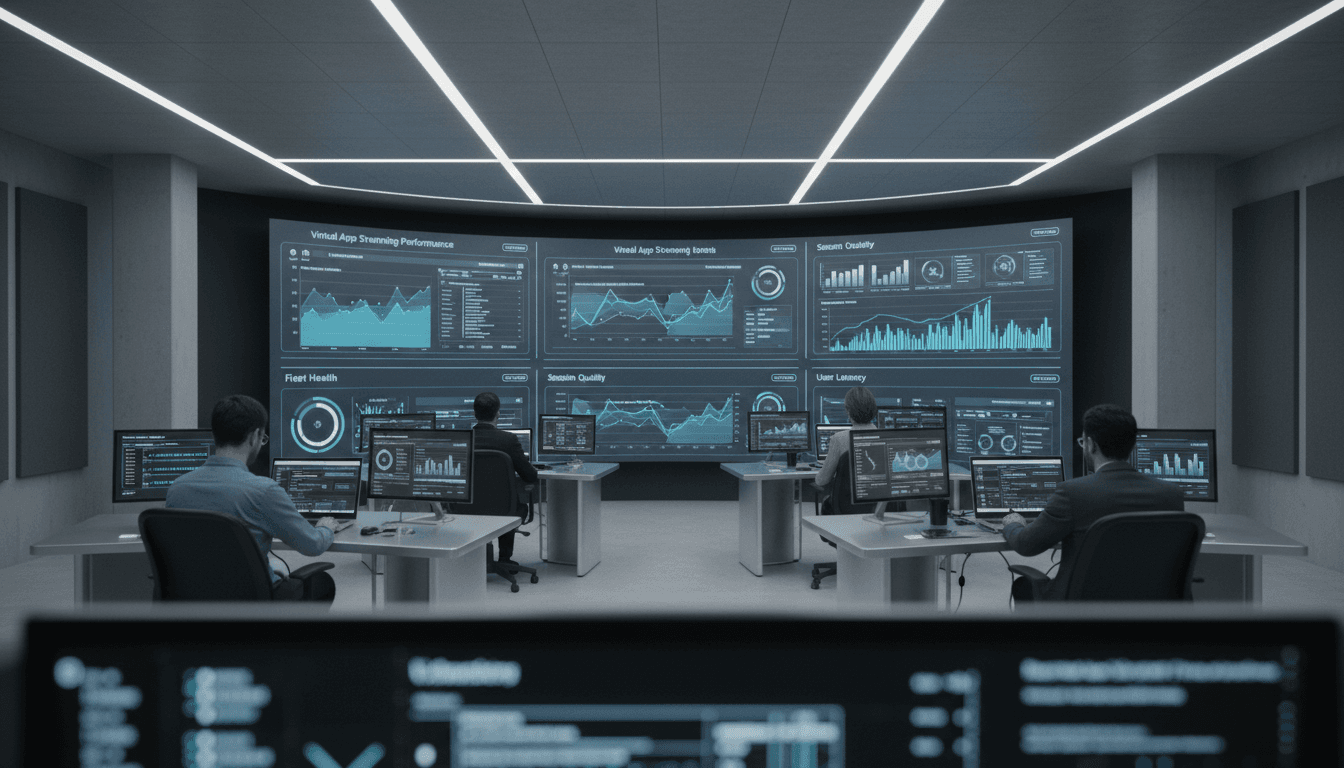
WorkSpaces Metrics: Monitor App Streaming Like a Pro
Most VDI and app streaming teams don’t have a “performance problem.” They have a visibility problem.
When an end user says, “It’s slow,” you’re forced into guesswork: Is it the fleet? A noisy neighbor on the host? A capacity issue? An isolated user on a weak network? And because app streaming sits at the intersection of cloud infrastructure, identity, and user experience, you can burn hours arguing about where the issue lives.
Amazon’s December 2025 update for Amazon WorkSpaces Applications tackles that pain directly: additional Amazon CloudWatch health and performance metrics across fleets, sessions, instances, and users. The practical impact is bigger than it sounds. Better telemetry turns app streaming from a reactive support function into an optimization loop—exactly the pattern that shows up across modern AI in cloud computing and data centers: observe → decide → act.
What AWS actually shipped (and why it matters)
AWS added a new set of CloudWatch metrics for WorkSpaces Applications that help you monitor health and performance at multiple layers—fleet-level signals for operations, and session/user-level signals for support.
This matters because VDI/app streaming issues rarely show up neatly at one layer. A fleet can look “fine” while a subset of users struggle due to capacity contention, image issues, or session-level constraints. With richer metrics, you can:
- Troubleshoot faster by narrowing the blast radius (fleet vs. instance vs. session vs. user)
- Set thresholds that match your performance targets and cost targets (not just “keep it running”)
- Continuously right-size streaming instances instead of re-litigating sizing every quarter
AWS also made it easier operationally: administrators can enable monitoring across fleets from the CloudWatch console, and the metrics dynamically update to reflect current state.
The non-negotiable prerequisite: agent freshness
To use these metrics, fleets must be built from images that include the latest WorkSpaces Applications agent released on or after December 06, 2025, or images updated via Managed WorkSpaces Applications image updates released on or after December 05, 2025.
If you run a mature environment, this requirement is a gift: it forces a conversation many orgs avoid—image hygiene. Metrics are only as reliable as the instrumentation emitting them.
The real win: metrics at four layers (fleet, session, instance, user)
The big shift here isn’t “more graphs.” It’s that you can build an operational model where every incident starts with a simple sorting question:
“Is this global, regional, fleet-wide, instance-specific, or user-specific?”
That one sentence can cut your mean time to resolve by half, because it stops teams from chasing the wrong hypothesis.
Fleet metrics: where capacity meets experience
Fleet-level metrics are your early-warning system. They answer questions like:
- Are we approaching a capacity limit before users notice?
- Did a new image or config change degrade performance across the board?
- Are we over-provisioned during predictable lulls (like the last two weeks of December)?
In practice, fleet metrics are also what enable smarter automation. If you’re working toward AI-driven resource allocation (even if you’re not calling it “AI” yet), you need stable signals at this level.
My stance: if you’re still scaling fleets on a calendar schedule (“add capacity every Monday”), you’re leaving money on the table and creating avoidable incidents.
Instance metrics: pinpoint noisy neighbors and host pressure
Instance-level signals help you isolate whether performance issues map to:
- A subset of streaming instances under unusual load
- Underpowered instance types for certain apps
- Resource contention patterns that correlate with specific workloads
This is where cloud operations starts to feel like data center operations again: you’re looking for the “hot spots.” The difference is that in the cloud you can respond quickly—change instance types, split fleets by workload class, or adjust scaling rules.
Session metrics: the truth serum for “it’s slow” tickets
Session metrics are where user complaints meet reality. If your help desk lives in tickets and anecdotes, session telemetry is the corrective lens.
Done right, session-level metrics let you distinguish:
- Session health issues (disconnects, degraded session quality)
- Performance saturation (CPU/memory pressure impacting interactivity)
- Workload mismatch (users running tasks outside the expected profile)
For support operations, this changes the workflow from “collect logs, reproduce, escalate” to “check the session timeline, correlate, resolve.”
User metrics: finding patterns without blaming individuals
User-level metrics are sensitive territory. Teams can misuse them.
Used correctly, user metrics are not about surveillance—they’re about pattern detection:
- A specific department consistently hits performance ceilings (maybe they need a different fleet)
- A handful of users have chronic session issues (maybe they’re remote on constrained networks)
- A training gap exists (users unknowingly running heavy workflows)
This is also where you can get proactive: reach out with a fix or a better workflow before they open a ticket.
From metrics to decisions: right-sizing without the drama
AWS explicitly calls out a key use case: making informed decisions on sizing and end users’ streaming instances by setting performance thresholds that align to performance and budgeting criteria.
That’s the sweet spot for most teams: balancing user experience and spend.
Here’s a practical right-sizing approach I’ve found works (and keeps stakeholders calm).
Step 1: define two SLOs that everyone understands
Pick metrics and thresholds that map to business reality:
- Interactive performance SLO: “Users should not experience sustained lag during core workflows.”
- Stability SLO: “Sessions should remain healthy; reconnects and failures should be rare.”
You can translate these into CloudWatch alarms on the new WorkSpaces Applications metrics, using separate severity levels:
- Warn when you’re trending toward a breach (capacity planning)
- Critical when user impact is likely (incident response)
Step 2: segment fleets by workload class (not org chart)
If one fleet serves light office apps and heavy 3D apps, you’ll end up overspending for everyone or underserving power users.
A cleaner model:
- Fleet A: task workers (light apps)
- Fleet B: knowledge workers (moderate apps)
- Fleet C: power users (heavy apps)
Now your metrics become actionable: each fleet has expected ranges and sane thresholds.
Step 3: use thresholds to drive action, not dashboards
Dashboards don’t reduce cost or improve experience—actions do.
Examples of metric-triggered actions:
- Scale out when fleet utilization + session health trends indicate impending contention
- Scale in during predictable low demand (end-of-year slowdowns are common in December)
- Adjust instance types when a workload class consistently runs “hot”
- Split fleets when one app causes variability that harms everyone
Where AI fits: intelligent monitoring is just operations with better feedback
This post is part of our AI in Cloud Computing & Data Centers series, and this AWS update is a solid real-world example of the foundation AI needs: high-quality, multi-layer telemetry.
AI doesn’t magically fix VDI performance. But with the right metrics, you can build systems that behave more intelligently:
- Anomaly detection: spot abnormal session patterns before ticket volume spikes
- Predictive scaling: forecast demand based on weekly patterns, holidays, and known events
- Recommendation loops: propose instance type changes based on sustained utilization profiles
- Energy and efficiency optimization: reduce idle capacity without risking user experience
Here’s the key principle:
AI-driven operations only work when your metrics are specific enough to explain why performance changed.
Fleet-only visibility gives you a yes/no answer. Multi-layer metrics give you causality.
Implementation checklist: getting value in the first week
If you want to turn this into results quickly (not a months-long observability project), use a tight rollout plan.
Day 1–2: verify agent/image compliance
- Identify fleets using images with the required agent freshness
- Plan image updates for non-compliant fleets
- Confirm that your update process won’t break app compatibility (test a representative set)
Day 3–4: build two dashboards and one alarm set
Dashboards:
- Operations dashboard (fleet + instances): capacity and health at a glance
- Support dashboard (sessions + users): quick triage for user-impacting issues
Alarms:
- Start with a small set of thresholds tied to your two SLOs
- Add alarms gradually; too many alarms is just noise with extra steps
Day 5–7: run a “ticket correlation” exercise
Take the last 20–50 streaming performance tickets and ask:
- Would these new metrics have identified the layer faster?
- Which alarms would have fired?
- Which fleet segmentation changes would have prevented repeat incidents?
This exercise is where metrics stop being abstract and start paying for themselves.
Common questions teams ask (and direct answers)
“Do we really need per-user metrics?”
Yes—if you use them to detect patterns and reduce repeat incidents. No—if your org will misuse them for policing. Keep it operational, not punitive.
“Will more metrics increase our monitoring costs?”
CloudWatch can add cost depending on what you store, alarm on, and retain. The workaround is simple: start narrow (few alarms, focused dashboards), then expand only where you see clear ROI.
“Is this available for regulated environments?”
Yes. AWS states these CloudWatch metrics are available in all AWS commercial regions and AWS GovCloud (US) regions where WorkSpaces Applications is available.
Where to go next
If you run WorkSpaces Applications at any meaningful scale, enabling these new health and performance metrics is one of those low-effort moves that changes the day-to-day experience for both ops and support.
The bigger opportunity is what you build on top: intelligent monitoring that doesn’t just report problems, but helps prevent them—right-sizing fleets, predicting demand, and keeping user experience steady while controlling cloud spend.
If you’re already investing in AI operations for cloud infrastructure and data centers, ask yourself one forward-looking question: Which WorkSpaces metrics will you trust enough to automate decisions against—and which ones still need human review?